
How it works
Open a listed merchant
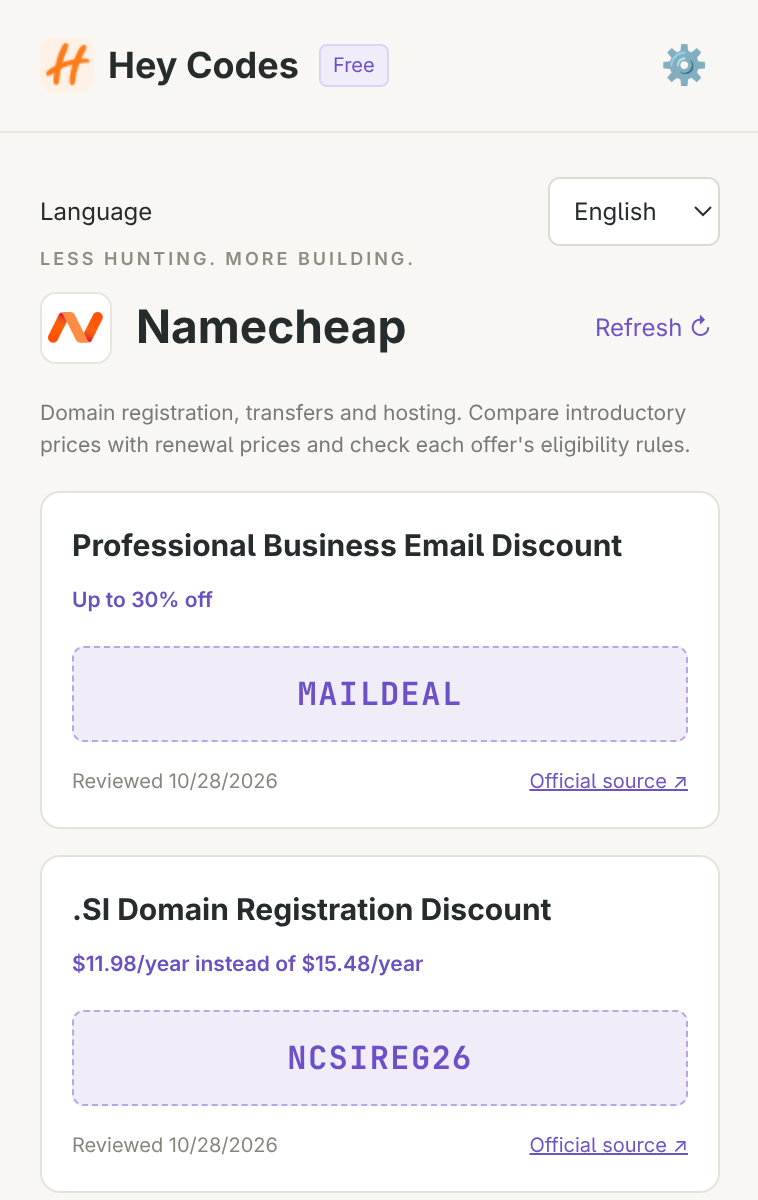
Visit a merchant website and open Hey Codes from Chrome’s toolbar. The popup identifies the merchant and shows its published public offers.
Click a code to copy
Read its official source and review date. Click the bordered code, or focus it and press Enter or Space. The extension refreshes the offer before copying.
Paste manually at checkout
Paste the code into the merchant’s field yourself, apply it using the merchant’s control and check the final total before purchasing.
Your language and your data
English is the default; Simplified Chinese is also available. Your language choice stays on your device. Offer data is cached only for the browser session and can be cleared in Settings. When fresh data is unavailable, cached information is reference-only and copying is paused.
Permissions explained
- activeTab: match the current tab URL to a listed merchant locally when you open the extension.
- storage: keep the language preference and browser-session offer cache.
- clipboardWrite: write only the selected code after your action; clipboard contents are never read.
- heycodes.app: retrieve merchant and offer data from the fixed first-party API. Requests include the merchant identifier and language, not the full merchant URL, account fields or payment details.
Privacy · How to use a promo code →
Current support scope
This version finds and copies public offers. It does not automatically fill or apply codes, make purchases or guarantee savings. A listed merchant does not imply a partnership. The merchant determines eligibility and the final price.